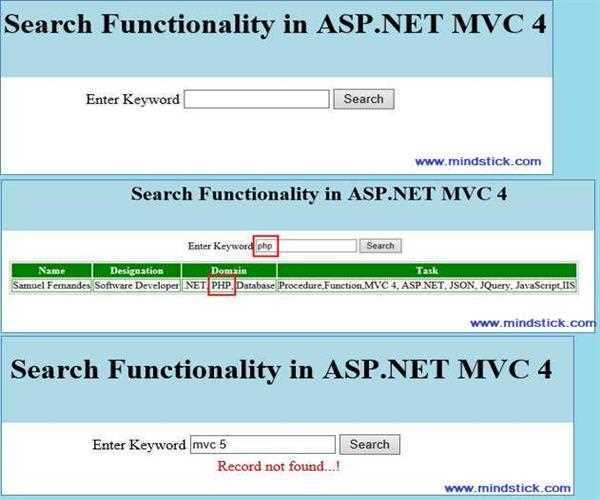
This article discusses about searching text from existing table. In this demonstration I’m going to explain you how can you use SQL query for finding a particular record from table, based on user input keyword. For making this demonstration I’ve used Visual Studio Express 2012 with framework 4.5, SQL Server 2008 and Windows 8 Operating System. Steps are given below
Step 1: First, create a table and insert some data. Below I’ve shown my table chema with data.
-- Create database e.g. MindStick_Demo

CREATE DATABASE MindStick_Demo

-- Used above created database

USE MindStick_Demo


-- Create table e.g. SearchDetails

CREATE TABLE SearchDetails

(

[ID] BIGINT IDENTITY PRIMARY KEY,

[Name] VARCHAR(50),

[Designation] VARCHAR(50),

[Domain] VARCHAR(50),

[Task] VARCHAR(MAX)

)


-- Insert data into SearchDetails table

INSERT INTO [SearchDetails]([Name],[Designation],[Domain],[Task]) VALUES('Samuel Fernandes','Software Developer','.NET, PHP, Database','Procedure,Function,MVC 4, ASP.NET, JSON, JQuery, JavaScript,IIS')

INSERT INTO [SearchDetails]([Name],[Designation],[Domain],[Task]) VALUES('Takeshi Okada','Jr. Software Developer','.NET','Windows Application,Procedure,Function,MVC 4, ASP.NET, JSON, JQuery, JavaScript,IIS')

INSERT INTO [SearchDetails]([Name],[Designation],[Domain],[Task]) VALUES('Alexander Sabato','Jr. Software Developer','.NET, Database','Procedure, Function, MVC 4, ASP.NET, JQuery, JavaScript,Web Service, Windows Application')

INSERT INTO [SearchDetails]([Name],[Designation],[Domain],[Task]) VALUES('Benjamin Richards','Software Developer','.NET,Testing','Procedure,Function,MVC 4, ASP.NET, JQuery, JavaScript')
Step 2: Open MVC Project in your Visual Studio with an empty template as below image

Step 3: Create a controller and write the following lines of code.
using System;

using System.Collections.Generic;

using System.Linq;

using System.Web.Mvc;

using SimpleSearch.Models;


namespace SimpleSearch.Controllers

{

    public class HomeController : Controller

    {

        protected List<string> keywords = new List<string>();

        public ActionResult Index()

        {

            ViewBag.Message = false;

            return View();

        }


        /// <summary>

        /// Get value from view textbox and send to model

        /// </summary>

        /// <param name="txtValue"></param>

        /// <returns></returns>

        [HttpPost]

        public ActionResult Index(string txtValue)

        {

            // Check length before for process

            if (txtValue.Length > 0)

            {

                // Turn user input to a list of keywords.

                string[] keywords = txtValue.Trim().Split(new string[] { " " }, StringSplitOptions.RemoveEmptyEntries);

                this.keywords = keywords.ToList();

                DisplayData dataAccess = new DisplayData();


                // call search method and passed generated keyword

                List<Content> list = dataAccess.Search(this.keywords);

                return View(list);

            }

            else

            {

                // If no keyword are entered than send error message to user

                ViewBag.Message = true;

                return View();

            }

        }

    }

}
Note: In the above code, for textbox validation, I have used ViewBag. For used proper validation in MVC, read the below article.
https://www.mindstick.com/Articles/871/validation-in-asp-dot-net-mvc3
Step 4: Create a model (e.g. Content) where we make properties and methods that
access by controller and view. Line of code is given below
using System.Collections.Generic;

using System.Configuration;

using System.Data.SqlClient;

using System.Text;


namespace SimpleSearch.Models

{

    /// <summary>

    /// This class is used to create properties

    /// </summary>

    public class Content

    {

        public long lID { get; set; }

        public string sName { get; set; }

        public string sDesignation { get; set; }

        public string sDomain { get; set; }

        public string sTask { get; set; }

    }


    /// <summary>

    /// This class is used to access database.

    /// </summary>

    public class DisplayData

    {

        /// <summary>

        /// Search records from database.

        /// </summary>

        /// <param name="keywords">the list of keywords</param>

        /// <returns>all found records</returns>

        public List<Content> Search(List<string> keywords)

        {

            // Generate a complex Sql command.

            StringBuilder sqlBuilder = new StringBuilder();

            sqlBuilder.Append("select * from [SearchDetails] where ");

            foreach (string item in keywords)

            {

                sqlBuilder.AppendFormat("([Name] like '%{0}%' or [Designation] like '%{0}%' or [Domain] like '%{0}%' or [Task] like '%{0}%') and ", item);

            }


            // Remove unnecessary string " and " at the end of the command.

            string sql = sqlBuilder.ToString(0, sqlBuilder.Length - 5);


            return QueryList(sql);

        }


        /// <summary>

        /// Excute a Sql command.

        /// </summary>

        /// <param name="cmdText">Command text</param>

        /// <returns></returns>

        protected List<Content> QueryList(string cmdText)

        {

            List<Content> ctn = new List<Content>();


            SqlCommand cmd = GenerateSqlCommand(cmdText);

            using (cmd.Connection)

            {

                SqlDataReader reader = cmd.ExecuteReader();


                // Transform records to a list.

                if (reader.HasRows)

                {

                    while (reader.Read())

                    {

                        ctn.Add(ReadValue(reader));

                    }

                }

            }

            return ctn;

        }


        /// <summary>

        /// Create a connected SqlCommand object.

        /// </summary>

        /// <param name="cmdText">Command text</param>

        /// <returns>SqlCommand object</returns>

        protected SqlCommand GenerateSqlCommand(string cmdText)

        {

            // Read Connection String from web.config file.

            SqlConnection con = new SqlConnection(ConfigurationManager.ConnectionStrings["dbConnection"].ConnectionString);

            SqlCommand cmd = new SqlCommand(cmdText, con);

            cmd.Connection.Open();

            return cmd;

        }


        /// <summary>

        /// Create an Content object from a SqlDataReader object.

        /// </summary>

        /// <param name="reader"></param>

        /// <returns></returns>

        protected Content ReadValue(SqlDataReader reader)

        {

            Content obj = new Content();


            obj.lID = (long)reader["ID"];

            obj.sName = (string)reader["Name"];

            obj.sDesignation = (string)reader["Designation"];

            obj.sDomain = (string)reader["Domain"];

            obj.sTask = (string)reader["Task"];

            return obj;

        }

    }

}
Note: Set database connection string in your application’s web.config as below line of code.
For Windows Authentication
<configuration>

 <connectionStrings>

    <add name="dbConnection" connectionString="Data Source=(local); Initial Catalog=MindStick_Demo; Integrated Security=True;" providerName="System.Data.SqlClient"/>

  </connectionStrings>

</configuration>
For SQL Server Authentication
<configuration>

 <connectionStrings>

    <add name="dbConnection" connectionString="Data Source=SeverName; Initial Catalog=MindStick_Demo; User id = XXXXX; Password = XXXXX" providerName="System.Data.SqlClient"/>

  </connectionStrings>

</configuration>
Step 5: Create View (e.g. Index) and use below lines of code
@model IEnumerable<SimpleSearch.Models.Content>

@{
    Layout = null;
}


<!DOCTYPE html>

<html>

<head>

    <meta name="viewport" content="width=device-width" />

    <title>Index</title>

    <style type="text/css">

        table, td, th {

            border: 1px solid green;

        }


        th {

            background-color: green;

            color: white;

        }

    </style>

</head>

<body>

    <div style="background-color: lightblue; height: 100px; padding-top: 10px;">

        <span style="text-align: center;">

            <h1> Search Functionality in ASP.NET MVC 4</h1>

        </span>

    </div>

    <div>

        <table style="margin-left: 35%; margin-top: 10px; border: none;">

            <tr>

                @using (Html.BeginForm())

                { <td style="border: none;">

                    <label id="lblName">Enter Keyword</label></td>

                    <td style="border: none;">@Html.TextBox("txtValue")</td>

                    <td style="border: none;">

                        <input id="btnSearch" type="submit" value="Search" /></td>

                }

            </tr>

        </table>

    </div>

    <div>

        @if (ViewBag.Message == true)

        {

            <label id="lblMessage" title="Please enter keyword" style="color:red;">Please enter keyword...!</label>

        }

        else

        {

            if (Model != null)

            {

                if (Model.Count() != 0)

                {

            <table style="border: 2px solid LightGray;">

                <tr>

                    <th>Name</th>

                    <th>Designation</th>

                    <th>Domain</th>

                    <th>Task</th>

                </tr>

                @foreach (var item in Model)

                {

                    <tr>

                        <td>@item.sName</td>

                        <td>@item.sDesignation</td>

                        <td>@item.sDomain</td>

                        <td>@item.sTask</td>

                    </tr>

                }

            </table>

                }

                else

                {

            <label id="lblErrorMsg" title="Record not fount...!" style="color:red;">Record not found...!</label>

                }

            }

        }

    </div>

</body>

</html>
Step 6: Build your application. Now it is time for a coffee and executes your application.
Step 7: Enter a valid keyword that you insert into a database. For example, if you search the PHP domain than the result will be populated as below image.
If you’ve entered a wrong keyword that does not exist in your table then “Record not found!” will be visible.
Thank You...........!!!
You should read also this Article - Insert, Delete, Update in SQL using web service in ASP.NET


Leave a Comment
4 Comments