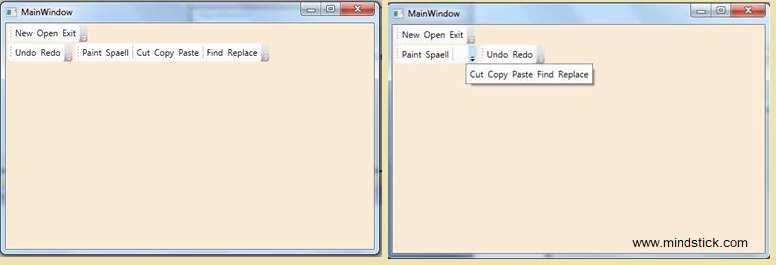
In XAML <ToolBarTray /> element is used to create TollBarTray control in WPF. We can use ToolBarTray control to position Toolbar into ToolBarTray control. We should use the Band or BandIndex property to position the toolbar into toolbartray. Band property indicates the position in which the toolbar is placed within its parent toolbartray and BandIndex property indicates the order in which toolbar is placed within its band. We can specify when an item on the toolbar is placed on the overflow panel by setting the ToolBar.OverFlowMode attached property to OverflowMode.Always, OverflowMode.Never, or OverflowMode.AsNeeded.
Following XAML code snippet represent the use of toolbar controls in WPF
<Grid>
        <ToolBarTray Background="AntiqueWhite">
            <ToolBar Band="1" BandIndex="1">
                <Button>New</Button>
                <Button>Open</Button>
                <Button>Exit</Button>
            </ToolBar>
            <ToolBar BandIndex="2" Band="2">
                <Button>Undo</Button>
                <Button>Redo</Button>
            </ToolBar>
            <ToolBar Band="2" BandIndex="2">
                <Button>Paint</Button>
                <Button>Spaell</Button>
                <Separator />
                <Button>Cut</Button>
                <Button>Copy</Button>
                <Button>Paste</Button>
                <Separator />
                <Button>Find</Button>
                <Button>Replace</Button>
            </ToolBar>
        </ToolBarTray>
</Grid>
The output of the above code snippet is as follows

Read Also This Article - Editable Grid View System using BootStrap in ASP.Net


Leave a Comment
1 Comments