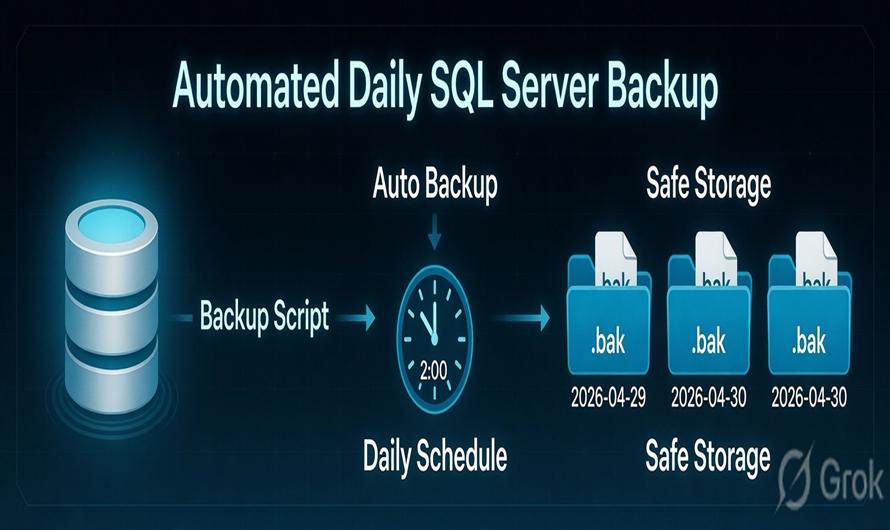
Backing up your database daily is not optional—it’s essential. In this guide, you’ll learn how to automate SQL Server backups, store them in date-wise folders, and schedule everything to run every day at 2 AM.
Why Date-Wise Backup Folders?
Instead of dumping all .bak files in one location, organizing backups like this:
C:\SQLBackup\
   ├── 2026-04-28\
   ├── 2026-04-29\
   ├── 2026-04-30\
gives you:
- Clean structure
- Easy restore by date
- Better maintenance & cleanup
Step 1: Backup Script with Date Folder
Here’s a dynamic SQL script that:
- Creates a folder based on today’s date
- Saves the backup inside it
DECLARE @BackupPath NVARCHAR(500)
DECLARE @Date NVARCHAR(20)
DECLARE @Cmd NVARCHAR(1000)

-- Format date (yyyy-mm-dd)
SET @Date = CONVERT(VARCHAR(10), GETDATE(), 23)

-- Folder path
SET @BackupPath = 'C:\SQLBackup\' + @Date + '\'

-- Create folder
SET @Cmd = 'mkdir "' + @BackupPath + '"'
EXEC xp_cmdshell @Cmd

-- Backup database
BACKUP DATABASE YourDatabaseName
TO DISK = @BackupPath + 'YourDatabaseName.bak'
WITH FORMAT, INIT, NAME = 'Daily Full Backup', COMPRESSION;
Step 2: Enable xp_cmdshell (if not enabled)
Required to create folders from SQL (use carefully in production)
EXEC sp_configure 'show advanced options', 1;
RECONFIGURE;

EXEC sp_configure 'xp_cmdshell', 1;
RECONFIGURE;
Step 3: Create SQL Server Agent Job
- Open SQL Server Management Studio (SSMS)
- Go to SQL Server Agent → Jobs → New Job
- Name:
Daily Database Backup
Step 4: Schedule at 2 AM
- Go to Schedules → New
- Frequency: Daily
- Time: 02:00:00 AM
- Now your backup runs automatically every night.
Step 5: Auto Delete Old Backups (Optional)
To avoid disk space issues, delete backups older than 7 days:
EXEC xp_cmdshell 'forfiles /p "C:\SQLBackup\" /s /d -7 /c "cmd /c rd /s /q @path"'Step 6: Restore Example (From Date Folder)
RESTORE DATABASE YourDatabaseName
FROM DISK = 'C:\SQLBackup\2026-04-29\YourDatabaseName.bak'
WITH REPLACE;
Best Practices
- Use COMPRESSION to reduce file size
- Store backups on separate drive/server
- Monitor job status in SQL Server Agent
- Avoid using
xp_cmdshellin high-security environments - Consider PowerShell or maintenance plans for enterprise setups
Common Mistakes
- Not testing restore process
- Keeping all backups in one folder
- No cleanup → disk full
- SQL Server Agent not running
Final Thoughts
Automating backups with date-wise folders + scheduled jobs gives you a clean, reliable, and production-ready backup system. Running it at 2 AM ensures minimal load and zero manual effort.


Leave a Comment