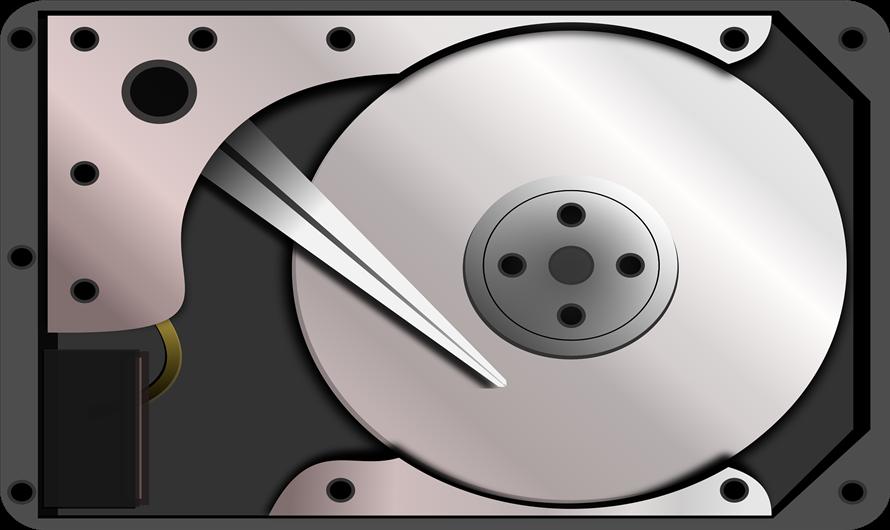
Hard drives remain important in business and enterprise storage, even as SSDs continue to gain ground. They provide high-capacity storage at a lower cost per gigabyte, support backup systems, and help organizations retain large volumes of files, logs, media, and archival data.
Choosing the right drive depends on workload, performance needs, backup strategy, and how the hardware will be managed at the end of its service life.
This guide explains how hard disk drives work, the main drive types businesses use, and how they fit into practical data protection plans.
Magnetic Storage Technology in HDDs
Hard disk drives store data by creating tiny magnetic regions on the platter surface. Each region represents a binary value based on its magnetic orientation.
As storage density has improved, manufacturers have packed more data into smaller areas while working to keep those magnetic patterns stable.
Most modern HDDs use forms of perpendicular or conventional magnetic recording, while newer high-capacity drives may use more advanced recording technologies.
The main goal is the same: store more information in less physical space without making the data too vulnerable to heat, vibration, or nearby magnetic interference.
This is one reason enterprise drives are built differently from basic consumer models. Business and data center environments often require drives that can handle heavier workloads, longer operating hours, and more vibration from nearby drives in the same enclosure.
Read/Write Head Mechanisms
The read/write head is the small component that records data to the platter and reads it back. It does not scrape against the disk surface during normal operation.
Instead, it flies extremely close to the platter on a thin cushion of air created as the disk spins. Some drive designs operate with head clearances measured in only a few nanometers.
When writing data, the head changes magnetic patterns on the disk surface. When reading data, it detects those magnetic patterns and converts them into electrical signals that the computer can process.
Because the head operates so close to the platter, contamination and physical shock can cause serious damage. A drop, a sudden vibration, or even a tiny particle inside the drive can lead to a head crash or corrupted data.
This is why hard drives should be handled carefully, especially when they are removed from servers, backup systems, or storage arrays.
Platter Speed and RPM Impact
Platter rotation speed affects how quickly a hard drive can find and transfer data. Common consumer HDDs often spin at 5,400 or 7,200 RPM, while some enterprise and performance-focused models have used higher speeds.
Higher RPMs can reduce latency because the drive spends less time waiting for the right sector of the platter to rotate under the read/write head. It can also improve sequential transfer performance.
However, speed is not the only factor that matters. Areal density, firmware, cache, interface type, workload pattern, and drive health all influence real-world performance.
For many business use cases, high-capacity HDDs are still practical for backups, archives, surveillance files, media libraries, and cold or warm data.
SSDs are usually better for active applications, databases, boot drives, and workloads that require fast random access.
Cache Memory Function
Hard drives include cache memory that acts as a buffer between the physical disk and the computer. The drive controller can temporarily store frequently requested data, predicted next data, or pending writes in this cache.
Read caching can improve access to repeated or nearby data. Write caching can make the system feel faster because the drive can accept data before it is fully committed to the platter.
However, write caching also introduces some risk. If power fails before cached data is written to the disk, data loss or corruption can occur.
Enterprise systems reduce this risk with power-loss protection, RAID controllers, battery-backed cache, uninterruptible power supplies, and backup policies that do not rely on a single device.
Types of Hard Drives for Different Storage Needs
Storage options expand quickly once you move beyond a single internal drive. The best choice depends on whether the drive is used for daily work, backup, shared storage, archiving, or hardware resale and retirement.
Internal Hard Drives for PCs and Workstations
Internal hard drives connect directly to the system through interfaces such as SATA or SAS. They are installed inside desktops, workstations, servers, and network storage systems.
The 2.5-inch form factor is common in laptops and compact systems. The 3.5-inch form factor is common in desktops, servers, and NAS devices because it can support higher capacities.
Internal HDDs remain useful for large local storage libraries, secondary data drives, and systems where capacity matters more than speed.
They are generally less expensive per gigabyte than SSDs, which makes them practical for storing photos, video files, documents, backups, and large project archives.
For operating systems and active software, however, SSDs usually provide a much better user experience.
External Hard Disk Drives
External hard disk drives add storage without opening a computer case. They usually connect through USB, Thunderbolt, or another external interface. Businesses often use them for local backups, temporary transfers, media storage, and offline copies.
Desktop external drives often require separate power adapters and are designed to stay in one place. Portable external drives usually draw power through the data cable and are easier to carry between offices or devices.
External drives are convenient, but they should not be treated as a complete backup plan by themselves. They can be lost, damaged, stolen, or infected if they remain connected to compromised systems.
For important data, they work best as one layer in a broader backup strategy.
Portable vs. Desktop External HDDs
Portable external hard drives are lighter and easier to move. They are useful for travel, field work, small-office backups, and transferring files between devices. Their smaller size usually means lower power needs and less capacity than larger desktop models.
Desktop external hard drives are better suited for scheduled backups, large media libraries, and long-term local storage. They often provide higher capacities and better sustained transfer rates, but they are less convenient to move and usually need external power.
The right option depends on how the drive will be used. A portable drive makes sense when mobility matters.
A desktop drive is better when capacity, stability, and regular backup routines are the priority.
Network-Attached Storage Drives
Network-attached storage, or NAS, allows multiple users and devices to store, access, and share files over a local network. NAS systems may connect through Ethernet or Wi-Fi, although wired connections are preferred for performance and reliability.
NAS devices range from simple two-bay systems to larger business units with multiple drive bays. Many support RAID configurations, snapshots, user permissions, remote access, and automated backups.
This makes them useful for small businesses, creative teams, and organizations that need shared storage without relying only on public cloud services.
NAS-specific hard drives are designed for longer operating hours and multi-drive environments. They usually have firmware and workload ratings that make them better suited for 24/7 use than basic desktop drives.
The NAS market has also continued to grow as businesses manage more data across local and hybrid storage systems.
Solid-State Drives vs. Traditional HDDs
SSDs use flash memory instead of spinning platters. Because they have no moving parts, they are faster, quieter, and more resistant to physical shock than HDDs. They are the better choice for operating systems, applications, databases, and workloads that need fast random reads and writes.
Traditional hard drives still have a strong role in bulk storage. They usually provide more capacity for the same budget, which makes them practical for backup targets, archives, media storage, surveillance systems, and large file repositories.
Many businesses use both. SSDs handle active workloads, while HDDs store data that is less performance-sensitive. This mixed approach helps balance speed, capacity, and cost.
How Hard Drives Support Data Backup Solutions
Backup strategies separate organizations that can recover from disruptions from those that may lose important data.
Hard drives support many backup plans because they offer large capacity, local control, and predictable storage costs.
Incremental Backup Methods
Incremental backups copy only the data that has changed since the previous backup. A full backup is created first. After that, each incremental backup stores only new or modified files.
This method saves storage space and reduces backup time. It is especially useful when daily changes are relatively small compared with the total amount of stored data.
The main drawback appears during recovery. To restore everything, you need the original full backup and every required incremental backup in the chain.
Differential backups are another option. They copy all changes made since the last full backup. They usually take more space over time than incremental backups, but they can simplify recovery because fewer backup sets are needed.
Full System Backup Capabilities
A full system backup captures the operating system, installed applications, settings, files, and other system components. This type of backup can help restore an entire machine after a failed drive, ransomware incident, or hardware replacement.
Image-based backups are useful for business continuity because they can reduce rebuild time. Instead of reinstalling everything manually, the system can be restored from a known backup image. The process still requires planning, testing, and enough storage capacity to keep backup images current.
Businesses should also test restores regularly. A backup that cannot be restored when needed is not a reliable backup.
Off-Site Backup with External Hard Drives
External hard drives can support off-site backup by rotating copies between locations. One drive may remain connected for current backups while another is stored elsewhere.
This helps protect data from theft, fire, flood, ransomware, and local hardware failure.
This approach can be cost-effective for businesses with large data sets and limited upload bandwidth. However, off-site drives should be encrypted, labeled, tracked, and handled carefully.
Rotation schedules should be documented so staff know which copy is current and where it is stored.
Cloud Backup vs. Local Drive Backup
Local backups using external drives or NAS systems provide fast access and direct control. They are useful during internet outages and can make large restores faster than downloading everything from the cloud.
Cloud backups provide off-site protection and automated retention options. They can help protect against disasters that affect the office or local storage environment.
The trade-off is that upload speed, download speed, subscription costs, and provider reliability all matter.
A combined approach is often best. Local backups support fast recovery, while cloud or off-site copies provide protection when local devices are damaged, compromised, or unavailable.
The 3-2-1 Backup Rule
The 3-2-1 backup rule is a widely used framework for data protection. It recommends keeping three copies of important data, storing them on two different types of media, and keeping one copy off-site. CISA also recommends this approach as a way to improve the chances of recovering lost or corrupted data.
Modern backup planning often adds extra protections, such as immutable copies, offline storage, and routine restore testing.
These additions help address ransomware and other threats that can target connected backups. Veeam notes that the 3-2-1 rule remains useful when applied thoughtfully for current backup environments.
Managing Hard Drives Through the Full Data Lifecycle
Business storage planning should include more than buying and backing up drives. It should also cover what happens when drives are replaced, retired, or removed from production systems.
Unused drives can still contain sensitive business data. Before they leave an organization, they should be wiped, destroyed, recycled, or resold through a process that accounts for data security and asset value.
For companies retiring batches of corporate or data center drives, Big Data Supply provides an option for selling used hard drives while addressing secure data destruction and responsible recycling.
This step matters because storage hardware can retain recoverable data even after files are deleted. Clear procedures for driving retirement reduce security risk and help businesses recover value from equipment that may otherwise sit unused.
Conclusion
Hard drives continue to play a practical role in business and enterprise storage. They offer high capacity, predictable costs, and strong value for backups, archives, shared storage, and less performance-sensitive workloads.
SSDs are better for speed-focused tasks, but HDDs remain useful when storage volume matters most. A sound storage plan should account for drive type, workload, backup structure, off-site protection, and secure retirement.
By combining reliable hardware with tested backup routines and clear lifecycle policies, organizations can protect data more effectively while making better use of their storage investments.


Leave a Comment