Sending emails directly from SQL Server is useful for alerts, reports, and automation. This is done using Database Mail, a built-in feature in SQL Server.
What is Database Mail?
Database Mail allows SQL Server to send emails using SMTP (like Gmail, Outlook, etc.) via stored procedures such as
sp_send_dbmail.
Use Cases
- Send daily reports automatically
- Notify on job failure/success
- Alert on critical errors
- Send query results via email
Step 1: Enable Database Mail
EXEC sp_configure 'show advanced options', 1;
RECONFIGURE;

EXEC sp_configure 'Database Mail XPs', 1;
RECONFIGURE;
Step 2: Configure Database Mail (UI Method - Recommended)
- Open SQL Server Management Studio (SSMS)
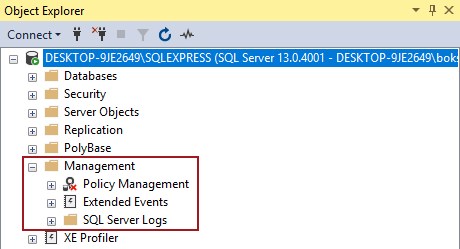
- Go to: Management → Database Mail → Configure Database Mail
- Select: Set up Database Mail
Step 3: Create Mail Profile
- Profile Name:
MyMailProfile - Description: SQL Mail Profile
Step 4: Add SMTP Account
Fill SMTP details:
- Email Address:
yourmail@gmail.com - Display Name: SQL Server
- SMTP Server:
smtp.gmail.com - Port:
587 - Enable SSL: true
- Username: your email
- Password: app password (recommended)
Step 5: Test Email
EXEC msdb.dbo.sp_send_dbmail
    @profile_name = 'MyMailProfile',
    @recipients = 'test@example.com',
    @subject = 'Test Email',
    @body = 'Database Mail is working!';
Step 6: Send Query Result via Email
EXEC msdb.dbo.sp_send_dbmail
    @profile_name = 'MyMailProfile',
    @recipients = 'admin@example.com',
    @subject = 'Daily Report',
    @query = 'SELECT TOP 10 * FROM Users',
    @attach_query_result_as_file = 1;
Step 7: Use in SQL Server Agent Job
Go to SQL Server Agent → Jobs
Add step or notification:
- Send email on success/failure
- Attach logs or results
Common Issues & Fixes
1. Email Not Sending
- Check SMTP credentials
- Enable "Less secure apps" or use app password
2. Queue Stuck
EXEC msdb.dbo.sysmail_start_sp;3. Check Mail Logs
SELECT * FROM msdb.dbo.sysmail_allitems;
SELECT * FROM msdb.dbo.sysmail_event_log;
Best Practices
- Use app password instead of main email password
- Restrict profile access (security)
- Monitor mail logs regularly
- Avoid sending large data directly
Real-World Example
Send daily transaction report automatically:
EXEC msdb.dbo.sp_send_dbmail
    @profile_name = 'MyMailProfile',
    @recipients = 'admin@company.com',
    @subject = 'Daily Transaction Report',
    @query = 'SELECT * FROM DailyTransactionReport WHERE ReportDate = CAST(GETDATE()-1 AS DATE)';
Final Thoughts
Configuring email in SQL Server using Database Mail is a powerful way to automate communication. Whether it’s alerts, reports, or monitoring—this feature can make your system smarter and more responsive.
Read More:
Configure Database Mail in SQL Server


Leave a Comment