What are SQL Server Jobs?
A SQL Server Job is an automated task (or set of tasks) managed by SQL Server Agent.
Think of it as a scheduler that can:
- Run SQL queries
- Execute stored procedures
- Perform backups
- Run scripts (PowerShell, SSIS, etc.)
- Send alerts or emails
Each job consists of:
- Job Steps → What to do
- Schedules → When to run
- Alerts/Notifications → What happens after execution
Why use SQL Server Jobs?
Without jobs, you’d have to manually run repetitive tasks — which is risky and inefficient.
Key Benefits
1. Automation
- Run tasks automatically without human intervention
Example: Daily database backup at 2 AM
2. Reliability
- Reduces human error and ensures consistency
3. Time-saving
- Frees developers/DBAs from repetitive work
4. Monitoring & Alerts
- You can configure email alerts on success/failure
5. Centralized Management
- All scheduled operations are controlled in one place
Common Use Cases
- Database backups (Full, Differential, Log)
- Data cleanup (delete old records)
- Index maintenance (rebuild/reorganize)
- ETL jobs (data import/export)
- Report generation
- Sending automated emails
How SQL Server Jobs Work
At a high level:
- Job is created in SQL Server Agent
- Steps are defined (SQL script, SSIS package, etc.)
- Schedule is attached (daily, weekly, recurring)
- Job runs automatically
- Logs and notifications are generated
How to Create a SQL Server Job
Method 1: Using SSMS (GUI)
- Open SQL Server Management Studio
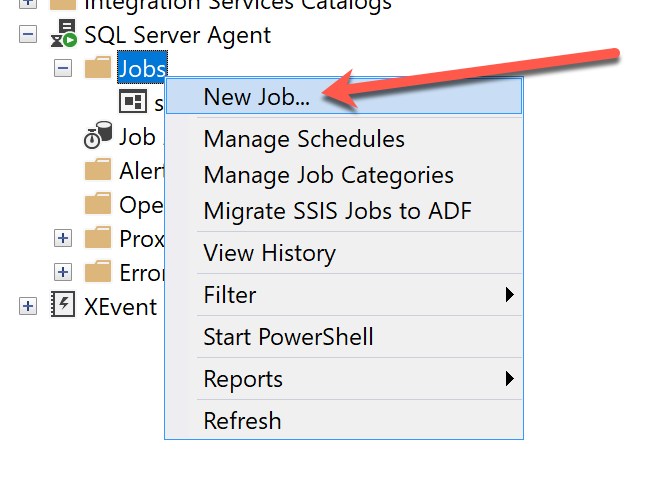
- Expand SQL Server Agent
- Right-click → New Job
- Enter:
- Job Name
- Description
Add Steps
- Go to Steps tab
- Click New
- Choose:
- Type: T-SQL Script
- Database
- Command (your query)
Example:
BACKUP DATABASE MyDB
TO DISK = 'C:\Backup\MyDB.bak'
Add Schedule
- Go to Schedules tab
- Click New
- Set:
- Frequency (Daily / Weekly / Monthly)
- Time (e.g., 2:00 AM)
Add Notifications (Optional)
- Email on success/failure
- Click OK → Job is ready
Method 2: Using T-SQL
You can also create jobs programmatically:
EXEC msdb.dbo.sp_add_job
    @job_name = 'Daily Backup Job';

EXEC msdb.dbo.sp_add_jobstep
    @job_name = 'Daily Backup Job',
    @step_name = 'Backup Step',
    @subsystem = 'TSQL',
    @command = 'BACKUP DATABASE MyDB TO DISK = ''C:\Backup\MyDB.bak''';

EXEC msdb.dbo.sp_add_schedule
    @schedule_name = 'DailySchedule',
    @freq_type = 4, -- Daily
    @active_start_time = 020000;

EXEC msdb.dbo.sp_attach_schedule
    @job_name = 'Daily Backup Job',
    @schedule_name = 'DailySchedule';

EXEC msdb.dbo.sp_add_jobserver
    @job_name = 'Daily Backup Job';
Job Components Explained
1. Job
- Container for the task
2. Step
- Actual operation (SQL, PowerShell, SSIS)
3. Schedule
- Defines timing
4. Operator
- Receives notifications
Best Practices
- Use meaningful names
- Example:
Daily_Full_Backup_DB
- Example:
- Add logging
- Always check job history
- Handle failures
- Configure retries and alerts
- Secure jobs
- Limit permissions
- Test before scheduling
- Never deploy untested jobs in production
Common Issues
- SQL Server Agent not running
- Jobs won’t execute unless Agent service is ON
- Permission issues
- User must have rights to run job steps
- Incorrect schedules
- Time zone or timing misconfigurations
When NOT to Use SQL Server Jobs
- Real-time processing (use services instead)
- Application-level workflows (better handled in app code)
- Complex orchestration (use tools like SSIS or Azure Data Factory)
Conclusion
SQL Server Jobs are a powerful feature of Microsoft SQL Server that enable automation, reliability, and efficiency in database operations.
If you're building production-grade systems, mastering SQL Server Jobs is not optional — it's essential.


Leave a Comment