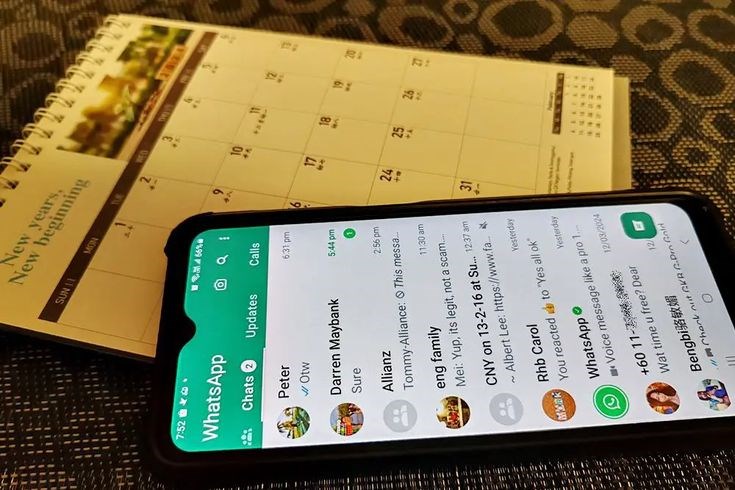
After losing your iPhone or Android phone, you do not get to lose your WhatsApp chat history; all you have to do is create backups. A new device has to be used to restore it. In Android: Make sure that your old phone saved chats to Google Drive. Install whatsApp on your new Android phone but log in using the same Google account. When you are asked, tap on Restore. In the case of iPhone: Verify that your earlier iPhone was syncing with iCloud. Download WhatsApp on your new iOS phone, enter your phone number, and confirm it, and then the option to Restore Chat History will come up, tap it. The condition to succeed is that the backup must be available prior to the loss of the device and the phone number and platform (iOS/iCloud or Android/Google drive) must be identical. Confirm and make sure that your backups are in action regularly.
Backup WhatsApp Before Disaster Strikes
Periodic backups must be done so that history of chats can be recovered in case your iPhone or Android phone gets lost. In case of iPhones, to turn on the iCloud backups option one should use Settings> WhatsApp > Chats > Chat Backup. Android users have to connect Google Drive in the same settings menu. There is no chance of restoring the chat even when the device is lost in case there is no recent backup. In case of the new device, the same phone number and restore iCloud (iOS) or Google Drive (Android) have to be used when setting up WhatsApp. To recover messages you have to back up prior to loss of your device.
Reinstall WhatsApp on New Device
To recover your WhatsApp chat history when reinstalling to a different device after you lost your first iPhone or any android phone, you would have already enabled cloud backups on the lost device. As an iC phone, this demands an iCloud back-up, and as an Android phone, it demands Google Drive backup. When you set it up on the new phone and enter your account with verification of your phone number, WhatsApp will automatically recognise the most recent cloud backup to your account and ask you whether or not you want to recover it. It will work only in case there was a backup on either iCloud (iPhone) or Google Drive (Android) that was made earlier than the original device lost.
Restore Android Chats from Drive
On a new Android phone to access WhatsApp chats on it through Google Drive, log in with the same Google account to which the first backup was attached. Use WhatsApp and confirm your phone number. The available Google Drive backup linked with your number will be automatically identified by the application. When it asks, tap restore in order to save your chat history and media files. Such an operation will presuppose the creation of a backup in WhatsApp settings (Chats > Chat backup) beforehand in your original gadget. Google backs up in Google Drive, namely the Android.
Recover iPhone Chats via iCloud
To restore WhatsApp chat through iCloud in case you lose your iPhone then you must have activated iCloud backups in the WhatsApp app settings. Install WhatsApp on your new iPhone and confirm the original phone number. After being asked, you will need to select the option of Restore Chat History which will allow you to recover your messages, videos and images by using your most recent backup in iCloud. The only thing that could ensure the success is to have a backup that was created earlier; make sure to have "Chat Backup" enabled in WhatsApp Settings > Chats.
Troubleshoot Common Recovery Challenges
In order to recover WhatsApp chat history on an iPhone or Android phone that has been lost, a backup file (cloud) must first be in place. In Android, this needs a Google drive backup which is associated with a Google account. Restore WhatsApp by reinstalling it in a new phone, authorizing the number used, and relying on the same Google account password to get the data back. In the case of an iPhone, you require an iCloud backup connected with your Apple ID. Install WhatsApp again, confirm the phone number, and restore using the same Apple account by using iCloud. In case of lack of a recent cloud backup, it is not possible to restore chat history, local backups on the lost device are unrecoverable.
Conclusion
The restoration of your WhatsApp history in case of loss of your iPhone or Android will be possible only in case of an existing backup. Before the device was lost or stolen, you had to have turned on iCloud backups (iPhone), or Google Drive backups (Android). In order to recover, install WhatsApp on your new phone, then confirm your old phone number and choose recovery when asked to do it. This entails the infiltration of the identical phone number and Apple account (iPhone) or Google Account (Android) remodeled into the backup of the lost cell phone. If you have not made a cloud backup within a reasonable period, then you cannot restore your entire chat. Make sure that automatic backup is on in order to provide future protection.


Leave a Comment