How to create Microsoft word document by using C#.net let’s see step by step.
Step 1: First open visual studio and create new window form application project by opening file menu and click new project and then select a project.
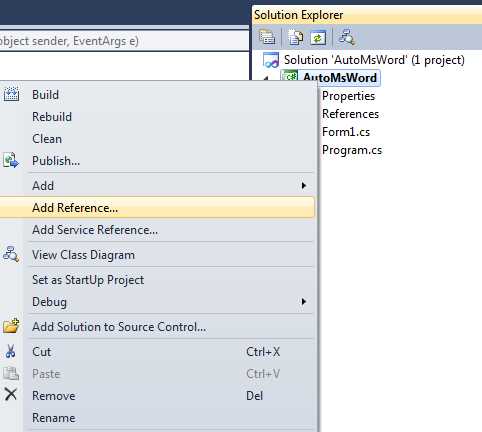
Step 2: After successful completion of creating new project write click on the project name and select Add References in Solution Explorer which appear in left pane of visual studio.

After Click on Add reference then following window will be appear and select Microsoft Word 12.0 Object Library dll and click ok.
Step 3: After the Successfully added dll in your project write the following code to create MS-Word Document.
Here I am making a window form which perform two task first one is create ms-word document and second one is read document.
Step 4: Now debug the code and click on the create button after clicking create button the create button click event generate
public partial class Form1 : Form
    {
         // create MS-Word application
         Microsoft.Office.Interop.Word.ApplicationmsWord=new Microsoft.Office.Interop.Word.Application();
         // create Word document reference
         Microsoft.Office.Interop.Word.Documentdoc;
         // Create misssing value object
         objectobjMiss=System.Reflection.Missing.Value;
         // Create end of document object
         objectendofdoc="\\endofdoc";
         publicForm1()
         {
            InitializeComponent();
         }
         /// <summary>
         ///This Method create first paragraph
         /// </summary>
         public voidFirstPara()
         {
             // create first paragraph with reference name
            Microsoft.Office.Interop.Word.Paragraphpara1;
             // add paragraph with document
            para1=doc.Content.Paragraphs.Add(refobjMiss);
             // create object of heading style
             object styleHeading1="Heading 1";
             //add heading style with paragraph
            para1.Range.set_Style(refstyleHeading1);
             // Write text of paragraph
            para1.Range.Text= "Hello Arun, How are You?";
             //set font style of paragraph
            para1.Range.Font.Bold=1;
             // set space after write format of paragraph
            para1.Format.SpaceAfter=24;
             // selection range of after insert paragraph
            para1.Range.InsertParagraphAfter();
         }
         /// <summary>
         ///This Method Create Second Paragraph
         /// </summary>
         public voidSecondPara()
         {
             // create second paragaraph  with paragraph reference name para2
            Microsoft.Office.Interop.Word.Paragraphpara2;

             // add second paragraph with documnet
            para2=doc.Content.Paragraphs.Add(refobjMiss);
             // set paragraph heading style
             object styleHeading2="Heading 2";
             // add heading style with paragraph
            para2.Range.set_Style(refstyleHeading2);
             // second paragraph text
            para2.Range.Text= "Hii This is Arun I am fine and you?";
             // set second paragraph font style
            para2.Range.Font.Bold=1;
             // space or font size style like 24pt, 25pt etc.
            para2.Format.SpaceAfter=24;
             // set selection range of paragraph
            para2.Range.InsertParagraphAfter();
         }
         /// <summary>
         ///This Method create table in ms-word document
         /// </summary>
         public voidCreateTable(intRow,  intcolumn)
         {

             // create table in word documnet in word application with table reference name tbl1
            Microsoft.Office.Interop.Word.Tabletbl1;
             // calculate the range of endofdocu
            Microsoft.Office.Interop.Word.RangewordRange=doc.Bookmarks.get_Item(refendofdoc).Range;
             // add table with document with number of row and column
            tbl1=doc.Content.Tables.Add(wordRange, 3, 3, refobjMiss, refobjMiss);
             // set border visibility true by input 1 and false by input 0
            tbl1.Borders.Enable=1;
             // set text in each cell of table
             for (intr=1; r<=3; r++)
            {
                 for (int c=1; c<=3; c++)
                {
                    tbl1.Cell(r, c).Range.Text="r"+r+"c"+c;
                }
            }
         }

/// <summary>
///This method creates ms-word document and adding some paragraph, table and much more.
/// </summary>

         public voidCreateMsWord()
         {
             try
            {
                // show ms-word application
                 msWord.Visible=true;
                 // add blank documnet in word application
                doc =msWord.Documents.Add(ref objMiss, refobjMiss,  refobjMiss,  refobjMiss);
                 // create first para
                FirstPara();
                 // create Second para
                SecondPara();
                 // create table
                CreateTable(3, 3);

            }
             catch (Exception ex) { MessageBox.Show(ex.ToString()); }

         }

         /// <summary>
         ///create button click event
         /// </summary>
         private void btn_Create_Click(objectsender, EventArgse)
         {
             // call the method to create ms word document file
            CreateMsWord();
         }
Desired Output:
When you click on Create button then following ms-word document file created.


Leave a Comment
1 Comments