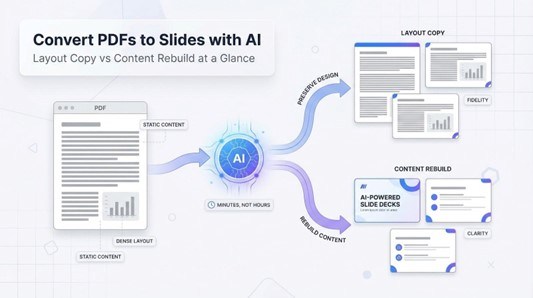
Turning a 40-page PDF into slides once took hours of copy-paste pain. Today’s AI converters read the file, understand its structure, and deliver an editable deck in minutes—often cutting prep time by 95 percent. This article breaks down the two approaches that make that possible—Layout Copy for pixel-perfect fidelity and Content Rebuild for story-first clarity—so you can choose the best method (and a tool like Plus AI) every time.
Why convert PDFs to PowerPoint with AI?
PDFs capture a document’s final look, but they fall short when you need to present the content. Dense paragraphs, fixed page sizes, and static charts make audiences squint while you describe every detail. That fatigue is universal.
Legacy converters repeat the pain. They paste each page onto a slide, leaving blurry images or a maze of text boxes that resist editing. Cleaning up the result often takes as long as starting from zero.
AI changes the workflow. Modern tools read the file’s structure, extract headings, surface key points, and rebuild them as clean, editable slides. Jobs that once swallowed an afternoon now finish in minutes.
The gains are practical: you keep brand fonts and colors, cut manual errors, and spend time shaping the story instead of fixing layout issues. Teams turn whitepapers into pitches, trainers transform manuals into workshops, and students revise research papers into clear defenses without the copy-paste marathon.
Put simply, AI unlocks a PDF and hands you a living deck you can refine, brand, and present with confidence. That’s why we rely on it.
Approach 1: layout copy – preserving the original design
What is layout copy?
Layout copy lifts every element from a PDF and places it on a matching slide. Page one becomes slide one, charts stay in place, and brand colors remain intact.

Behind the scenes, the converter reads vector data, maps text boxes, and rebuilds shapes in PowerPoint XML. If the PDF began as a slide deck, the round-trip feels almost lossless. When the source is a designed report, you still receive a point-for-point replica ready for quick edits.
Because fidelity is the goal, the software relies on parsing algorithms or basic OCR rather than large language models. It copies rather than critiques, which is useful when legal wording, fine print, or intricate charts must stay untouched.
The trade-off is clear: you inherit the PDF’s virtues and its flaws. Dense paragraphs remain dense, multi-column layouts crowd a single slide, and any design quirks live on. Layout copy shines when “don’t change a pixel” is the main requirement.
How to do a layout copy conversion
You likely already have a tool that can clone a PDF page for page. Three common options:
Adobe Acrobat (best fidelity). Open the PDF, select Export PDF, choose PowerPoint, and click Export. Acrobat keeps fonts, images, and layout with high accuracy and is often recommended for business documents that cannot lose formatting (AskYourPDF guide).
PowerPoint built-in import. In a blank deck, select Insert > Object > Adobe Acrobat Document, then pick your PDF. PowerPoint inserts each page as an image on its own slide. Editing is limited, yet this method works when you just need visuals for a meeting.
Free online converters (quick, no install). Sites such as Smallpdf or SodaPDF let you upload, convert, and download a .pptx in under one minute. Results vary; some tools watermark or misplace fonts, but they are handy for small, non-sensitive files on a borrowed laptop.
Online PDF-to-PPT converter interface screenshot (Smallpdf).
After conversion, you have an editable deck that looks like the original. Tighten text, apply your brand template, and you are presentation-ready.
Pros and cons of layout copy
Layout copy feels safe because nothing changes. That strength is also its weakness.
The biggest win is visual fidelity. Every chart, icon, and brand color appears exactly where the designer placed it. Legal language stays intact, so compliance teams can relax. Because the text boxes are already positioned, small edits such as changing a date or label finish in minutes instead of hours.
Problems arise when the PDF was never meant for slides. Stuffed paragraphs shrink to eight-point type, and multi-column pages squeeze into one column, creating a wall of words that drains attention. You often need to rearrange content anyway, only now you manage a maze of tiny text boxes.
Layout copy also preserves any mistakes in the PDF: typos, outdated data, or awkward page breaks. The converter does not judge; it mirrors. If the source is cluttered, the deck will be too.
Choose this route when accuracy outranks readability—for example, republishing an archived slide deck, sharing a financial statement, or distributing design-heavy marketing materials. Skip it when you need to tell a story, engage an audience, or trim a dense report into highlights.
Approach 2: content rebuild – re-flowing content with AI intelligence
What is content rebuild?
Content rebuild treats a PDF like a draft, not a blueprint. The AI reads every heading, paragraph, and footnote, spots what matters, and writes a fresh slide deck in your chosen template. It feels like handing the file to a junior analyst who returns a polished outline, only this analyst finishes in seconds.
The engine behind the process is a large language model. After extracting raw text (and running OCR if the file is scanned), it breaks the document into logical chunks, summarizes long passages, and writes slide titles, bullets, and speaker-friendly notes. Images and charts are not copied blindly; the AI decides whether to bring them over, replace them with cleaner visuals, or reference them in text.
Because the slides are generated from scratch, the result feels lighter and clearer than a one-to-one copy. You can pick a modern template, apply brand colors, and rearrange sections without wrestling hundreds of tiny text boxes. The trade-off is diligence: you must proof the summary, confirm key numbers, and add any visuals the AI skipped.
In short, content rebuild puts communication first. When your goal is to brief a room, not archive a layout, this approach delivers a deck that talks like a human and looks ready for the boardroom.
How to rebuild content with AI
The workflow feels almost conversational.
You upload the PDF to an AI presentation tool (we’ll use Plus AI as our example) and choose a template that matches your brand. The engine scans every page, extracts text, and decides how many slides the story needs. A fifty-page report may condense to fifteen crisp slides with titles, bullets, and speaker notes in place.
Next, review the draft inside the editor. If a slide feels thin, ask the AI to expand it. If a chart did not survive the jump, drag the original image onto the canvas. Because the content is freshly generated, text sits in single boxes you can rewrite in seconds. When you are satisfied, export the deck to PowerPoint or open it directly in Google Slides and share it with the team.
In practice, the full loop (upload, generate, tweak, export) fits inside a coffee break. The heavy lifting of summarizing, structuring, and styling finishes before the mug cools.
Pros and cons of content rebuild
Content rebuild adds clarity. Long paragraphs shrink into punchy bullets, jargon softens, and each idea earns its own slide. Audiences follow the story instead of reading a wall of text, and you spend prep time sharpening the message, not fixing formatting.
Design freedom is another benefit. Because the text is regenerated, you can swap templates, apply brand colors, or reorder sections without wrestling legacy layout code. Everything lives in clean text boxes that respond to your styling commands.
There are trade-offs. Summaries can overlook a key caveat or misplace a percentage. Charts may appear as placeholders, asking you to re-insert the original graphic. You must proof numbers, restore any visuals the AI skipped, and match tone to your audience.
Still, when the mission is persuasion, not preservation, content rebuild offers a head start no human intern can match. You review and refine instead of starting at slide one with a blinking cursor.
Layout copy vs content rebuild: which should you choose?
Both paths turn a stubborn PDF into slides, yet the outcomes feel worlds apart. The fastest way to spot the difference is to see what each approach protects and what it is willing to change.
| Factor | Layout copy (preserve design) | Content rebuild (revise content) |
| Purpose | Keep every pixel where it sits in the PDF | Retell the message in clear, slide-ready chunks |
| Output look | Matches the original layout page for page | Uses a fresh template and cleaner hierarchy |
| Content handling | Copies text verbatim; no cuts or summaries | Summarises, rewrites, and reorders ideas |
| Ideal for | Legal documents, design-heavy brochures, archived slide decks | Long reports, research papers, training manuals |
| Effort after conversion | Tidy up stray formatting; break dense text into digestible bites | Proof summaries, add any skipped charts, brand the deck |
| Key risk | Overcrowded slides that read like a PDF on a projector | Missing nuance or visuals if you skip the review |
The table gives a snapshot, yet choice still sparks questions. Start with intent. If your boss sends last quarter’s slide deck only as a PDF and asks for a few edits, layout copy is the direct route. You recover the file almost pixel perfect, tweak numbers, and you are done.
If you are staring at a fifty-page whitepaper and need a ten-minute briefing for sales, content rebuild is the practical choice. The AI trims excess text, lifts headlines, and drafts a clean story arc while you review.
Consider visuals next. Graph-heavy reports favor layout copy because every chart crosses intact, even if you plan to narrate the findings. Text-heavy documents shine with content rebuild, which frees the audience from dense paragraphs.
Finally, weigh the cleanup. Layout copy avoids rewriting but may trap you in formatting purgatory. Content rebuild nails the structure but asks you to verify facts. Neither path is perfect, yet both wrap up far faster than manual copy-paste.
A simple rule of thumb: when fidelity outranks narrative, copy the layout. When clarity outranks fidelity, rebuild the content.
Tips for a smooth conversion
Give the AI a running start, then finish with a quick human polish.
Proof the slides. Scan titles, bullet hierarchies, and any numbers the AI summarised. Compare them with the source PDF to catch missing qualifiers or flipped percentages. A five-minute check prevents red-face moments later.
Apply your brand template. Open the new deck, select Design > Browse for Themes, and pick your corporate master. Fonts, colors, and logo placeholders snap into place, so each slide looks on-brand without manual restyling.
Watch images and charts. If the AI skipped a complex graphic, copy it from the PDF or rebuild it in PowerPoint for sharper resolution. Do the same for tiny text—enlarge it or break it into separate visual callouts.
Handle scanned PDFs with care. Run the file through an OCR converter first, then feed the editable text to your AI tool. This extra step prevents empty slides and garbled characters.
Think about privacy before you upload. For public reports, online tools are fine. For sensitive financials or patient data, choose a service that encrypts files end to end and holds certifications such as SOC 2 Type II (Plus AI publishes its controls openly). If policy forbids any uploads, use an offline layout-copy method in Acrobat.
Keep the original PDF handy. When questions pop up mid-meeting, jump back to the source, confirm the figure, and keep the discussion moving.
AI PDF-to-PPT tool showcase
Plus AI – turn a PDF into an editable deck inside your slides app
Trusted by over one million users and boasting a 4.6-star average rating, www.plusai.com/ lives where you already work: Google Slides or PowerPoint. Drop a PDF into the sidebar, choose a ready-made template, and click Create. In about a minute the add-on returns a full deck with titles, bullet points, and speaker notes. Because everything happens inside the slide editor, you can tweak text, swap layouts, and collaborate with teammates without exporting or re-importing files.
Control is built in. Want fewer slides? Ask the assistant to condense. Need more depth on a section? Highlight the slide and press Expand. The model rewrites content in place, so you stay in the flow instead of switching to an external dashboard.
On security, Plus AI processes files with end-to-end encryption and operates under SOC 2 Type II controls, making it suitable for sensitive reports. A free tier covers occasional projects, while pay-as-you-go credits support daily conversions.
For teams in Google Workspace or Microsoft 365, Plus AI feels like a native feature. Upload the PDF, review the generated slides, and start rehearsing.
FAQs about AI PDF-to-PowerPoint conversion
Can I convert a PDF to PowerPoint without losing formatting?
Yes. A high-fidelity layout-copy tool such as Adobe Acrobat’s Export to PPT keeps fonts, images, and alignment intact. Always give the exported deck a quick scan to catch minor line-break quirks.
Is there an AI that creates Google Slides directly from a PDF?
Tools like Plus AI operate inside Google Slides itself. You upload the PDF and receive editable slides in the same workspace. No extra imports, and no broken layouts; simply save and share with your team.
What if my PDF is a scanned image?
Run optical character recognition first. Many converters include OCR, but if yours does not, process the file in Acrobat or Google Drive, then feed the text-based PDF to your AI tool. That step prevents empty or garbled slides.
Are these converters free?
Most services offer a free tier with limits on page count or downloads. For occasional projects, the free plan is enough. Heavy users usually choose a paid plan for larger files and faster processing.
Is it safe to upload confidential PDFs?
Check the provider’s security page. Services that use end-to-end encryption and hold certifications such as SOC 2 Type II—Plus AI is one example—are designed for sensitive data. When policy forbids cloud uploads, rely on offline tools like Acrobat on your desktop.
Conclusion
AI-driven PDF-to-PowerPoint tools eliminate hours of manual work by either preserving every pixel with layout copy or reinventing the narrative through content rebuild. Choose the approach that matches your goal—fidelity or clarity—apply a quick human polish, and you will have a professional, editable deck in a fraction of the time traditional methods demand.


Leave a Comment