---
title: "Frame control in WPF"
description: "In WPF we can use Frame control to display content of another window with the same window. WPF frame control does not support to displaying html conte"
author: "Anonymous User"
published: 2011-04-09
updated: 2020-04-12
canonical: https://www.mindstick.com/articles/543/frame-control-in-wpf
category: "wpf"
tags: ["wpf"]
reading_time: 2 minutes
---
# Frame control in WPF
### Frame control in WPF
In WPF we can use Frame control to display the content of another window with the same window. \
WPF frame control does not support displaying HTML content. \
We can navigate to another form and show the content of that form within the same window. \
The frame control in WPF supports navigation within the content. \
A-frame can be hosted within a window, navigation window or user control, etc. \
In XAML element is used to create a frame control. \
In this demonstration, I will show you how to use frame control in WPF.\
##### Following XAML code snippet represent frame control in WPF
```
```
##### Output of the following code snippet is as follows
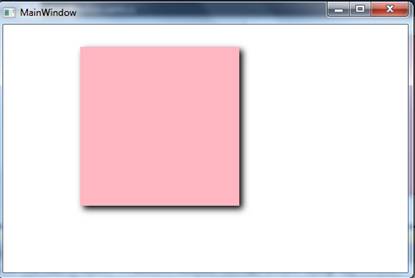
##### Rotating Frame by an angle
We can rotate frame providing an angle to frame object.
##### The following XAML code snippet represents are used to rotate a frame
```
```
##### The output of the following code snippet is as follows

##### Navigating content in the Frame control
XAML code which to create User Interface of the navigation frame
```
```
##### The output of the following code snippet is as follows

##### On the click event of the Show Content button write the following code
```
private void btnContent_Click(object sender, RoutedEventArgs e){ frame1.Navigate(new Uri("http://www.google.com"));}
```
##### The output of the following code

\
You should also read this Article - **[Group Name Field in Crystal Report](https://www.mindstick.com/Articles/613/group-name-field-in-crystal-report)**
---
Original Source: https://www.mindstick.com/articles/543/frame-control-in-wpf
Copyright © MindStick Software Pvt. Ltd. This Markdown version is provided for developers, AI systems, and offline reading.