---
title: "How to animate image left to right in android"
description: "In this article I am explaining wow to animate image left to right in android"
author: "Manoj Pandey"
published: 2015-03-28
updated: 2020-02-07
canonical: https://www.mindstick.com/articles/1698/how-to-animate-image-left-to-right-in-android
category: "android"
tags: ["android", "animation"]
reading_time: 3 minutes
---
# How to animate image left to right in android
## How to animate image left to right in android
\
[Android](https://www.mindstick.com/articles/1567/navigation-drawer-implementation-in-android) provides powerful api to apply [animation](https://www.mindstick.com/articles/13040/seven-helpful-tips-to-start-and-grow-an-animation-video-company) in out ui element drawing [custom](https://www.mindstick.com/blog/134981/midwest-tropical-is-your-best-source-for-custom-water-features) 2D and 3D animation. Animation makes our ui shining, [quality](https://www.mindstick.com/articles/13022/7-easy-tips-for-creating-quality-content) feel and standard. **Tween nimation** calculates the animation with information such as the start point, end point, size, rotation, and other [common](https://yourviews.mindstick.com/story/1215/the-most-common-sexually-transmitted-infections) aspects of an animation.
## *Here I am creating a sample of animation which image is moving left to right and right to left.*
1. Create an android [project](https://yourviews.mindstick.com/story/1788/things-to-ensure-your-construction-project-is-successful) and api level [must](https://yourviews.mindstick.com/view/84137/10-must-know-image-optimization-tips) be greater than 10.
2. Add view in activity_main.[xml file](https://www.mindstick.com/articles/75/how-to-read-and-write-xml-file-through-c-sharp)
```
```
3. Now add new folder in res name as anim (res/anim) and create a my anim. xml file ([Resource](https://www.mindstick.com/blog/43433/top-best-resources-for-women-about-beauty-and-health) type must be **Tweet Animation** ) .

4. Add following xml code in res/anim/**myanim**.xml file
```
```
5. Now follow the below code in Mainactivity.class
```
package com.example.demoanimation; import android.os.Bundle;import android.app.Activity;import android.view.View;import android.view.animation.Animation;import android.view.animation.AnimationUtils;import android.view.animation.Animation.AnimationListener;import android.widget.Button;import android.widget.ImageView;import android.widget.RelativeLayout; public class MainActivity extends Activity { ImageView imgLogo; Button btnStart; int pdfrom = 40; RelativeLayout layout; Animation animSequential; @Override protected void onCreate(Bundle savedInstanceState) { super.onCreate(savedInstanceState); setContentView(R.layout.activity_main); layout = (RelativeLayout) findViewById(R.id.myLayout); imgLogo = (ImageView) findViewById(R.id.imgLogo); btnStart = (Button) findViewById(R.id.btnStart); // repeat animation (left to right, right to left ) // load the animationanimSequential = AnimationUtils.loadAnimation(getApplicationContext(), R.anim.sequential); animSequential.setFillBefore(true); animSequential.setFillAfter(true); animSequential.setRepeatCount(Animation.INFINITE); animSequential.setRepeatMode(Animation.INFINITE); // button click event btnStart.setOnClickListener(new View.OnClickListener() { @Override public void onClick(View v) { // start the animation pdfrom = 40; imgLogo.startAnimation(animSequential); } }); animSequential.setAnimationListener(new AnimationListener() { @Override public void onAnimationStart(Animation animation) { // TODO Auto-generated method stub layout.setPadding(-50, 0, 0, 0); } @Override public void onAnimationRepeat(Animation animation) { // TODO Auto-generated method stub } @Override public void onAnimationEnd(Animation animation) { // TODO Auto-generated method stub if (pdfrom < 241) { imgLogo.setPadding(0, pdfrom, 0, 0); pdfrom = pdfrom + 40; imgLogo.startAnimation(animSequential); } else { animSequential.reset(); layout.setPadding(0, 0, 0, 0); } } }); } }
```
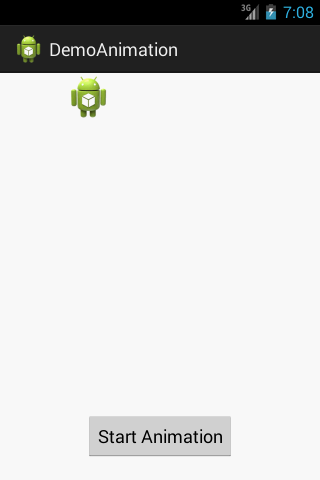
### *Now run your application*
---
Original Source: https://www.mindstick.com/articles/1698/how-to-animate-image-left-to-right-in-android
Copyright © MindStick Software Pvt. Ltd. This Markdown version is provided for developers, AI systems, and offline reading.